 Le Grimoire du Bivouhack 🏕️
Images au survol d’une cellule
Faire apparaitre des images au survol d’une cellule#
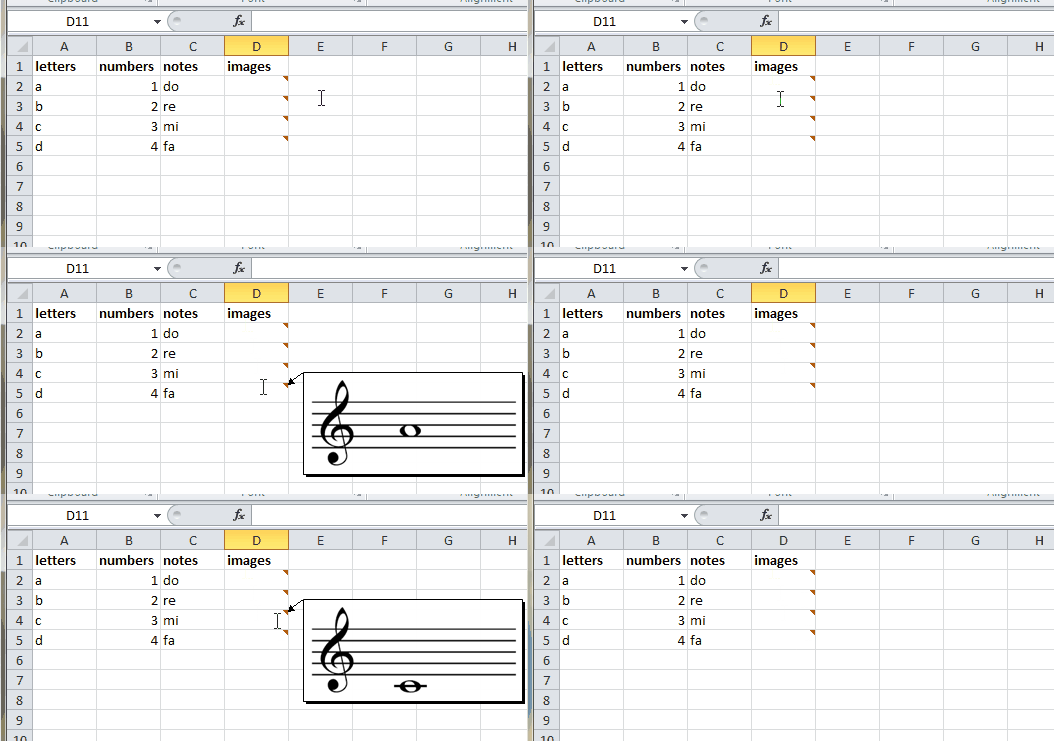
- Méthode manuelle : https://www.youtube.com/watch?v=pPekR2rzwWI
- Script: VBA:
  MsgBox("Welcome")

  scriptDir = Left(WScript.ScriptFullName, InStrRev(WScript.ScriptFullName, "\") - 1) & "\"

  'MsgBox(scriptDir)

  spreadsheetname = "Joulin Gantry Inventory.xlsx"

  spreadsheet     = scriptDir & spreadsheetname

  'MsgBox(spreadsheet)

  'spreadsheet     = "C:\Users\crclayton\Desktop\your_spreadsheet.xlsx"
  image_directory = scriptDir & "Images\"
  image_type      = ".jpg"

  column_with_image_names   = 6
  column_to_put_comments_in = 6
  scale_images_down_by 	    = 1


  Set objExcel = CreateObject("Excel.Application")
  Set fso = CreateObject("Scripting.FileSystemObject")
  Set oImage = CreateObject("WIA.ImageFile")

  Set objWorkbook = objExcel.Workbooks.Open(spreadsheet)
  objExcel.Application.Visible = True

  for i = 1 to objExcel.ActiveWorkbook.Worksheets(1).UsedRange.Rows.Count

      image = objExcel.Cells(i,column_with_image_names).Value
      image_file = image_directory & image & image_type

      if image <> "" and fso.FileExists(image_file) then

	      oImage.LoadFile image_file
		  'MsgBox("Loaded image " & image_file)

	      with objExcel.Cells(i,column_to_put_comments_in)
		      .AddComment " "
		      .Comment.Shape.Fill.UserPicture image_file
		      .Comment.Shape.Width = oImage.Width/scale_images_down_by
		      .Comment.Shape.Height = oImage.Height/scale_images_down_by
	      end with
      end if
  next

    MsgBox("Bye")
Post d'origine sur reddit : #
Original script post (reddit)
- https://www.reddit.com/r/excel/comments/3amak9/script_to_create_an_excel_picture_column_shows/
Script to create an Excel picture column (shows pictures on cell hover)#
[Pro Tip](<https://www.reddit.com/r/excel/?f=flair_name%3A%22Pro%20Tip%22>)- View result here: http://i.imgur.com/s1icxkr.gif
- I recently learned how to put images in an excel spreadsheet that are visible only on hover. What you do here, is create an empty comment, then format the comment's background fill to be a custom image. However, that would take ages to do manually, so I wrote a small script to do it and wanted to share.
- To use it, put a bunch of images in a directory. The image names should correspond with the values in a column of the spreadsheet. So for example, let's say you have this spreadsheet:
C:\\Users\\crclayton\\Desktop\\your_spreadsheet.xlsx letters numbers notes a 1 do b 2 re c 3 mi d 4 fa- And these image files:
C:\\Users\\crclayton\\Desktop\\Images\\ ↳ do.jpg ↳ re.jpg ↳ mi.jpg ↳ fa.jpg- You would take the following code, specify the variables at the top, put it in notepad save it as a .vbs file (this is VBScript, not VBA), then click it to run it.
spreadsheet = "C:\\Users\\crclayton\\Desktop\\your_spreadsheet.xlsx" image_directory = "C:\\Users\\crclayton\\Desktop\\Images\\" image_type = ".jpg" column_with_image_names = 3 column_to_put_comments_in = 4 scale_images_down_by = 3 Set objExcel = CreateObject("Excel.Application") Set fso = CreateObject("Scripting.FileSystemObject") Set oImage = CreateObject("WIA.ImageFile") Set objWorkbook = objExcel.Workbooks.Open(spreadsheet) objExcel.Application.Visible = True for i = 1 to objExcel.ActiveWorkbook.Worksheets(1).UsedRange.Rows.Count image = objExcel.Cells(i,column_with_image_names).Value image_file = image_directory & image & image_type if image <> "" and fso.FileExists(image_file) then oImage.LoadFile image_file with objExcel.Cells(i,column_to_put_comments_in) .AddComment " " .Comment.Shape.Fill.UserPicture image_file .Comment.Shape.Width = oImage.Width/scale_images_down_by .Comment.Shape.Height = oImage.Height/scale_images_down_by end with end if next- Of course if you use giant images and have many, many rows, this will really bloat out your spreadsheet so use your best judgement.
